Category: tutorial

  • A Comprehensive Guide to Finding Nofollow and Dofollow Links on a Website

    A Comprehensive Guide to Finding Nofollow and Dofollow Links on a Website

    Understanding the distinction between nofollow and dofollow links is crucial for anyone involved in website management, SEO (Search Engine Optimization), or digital marketing. These link attributes play a pivotal role in determining a website’s search engine ranking and overall online visibility. In this comprehensive guide, we will delve deep into the world of nofollow and dofollow links, explaining what they are, why they matter, and how to find them on a website. By the end of this article, you’ll be well-equipped to navigate the complex landscape of website linking.

    1. What Are Nofollow and Dofollow Links?

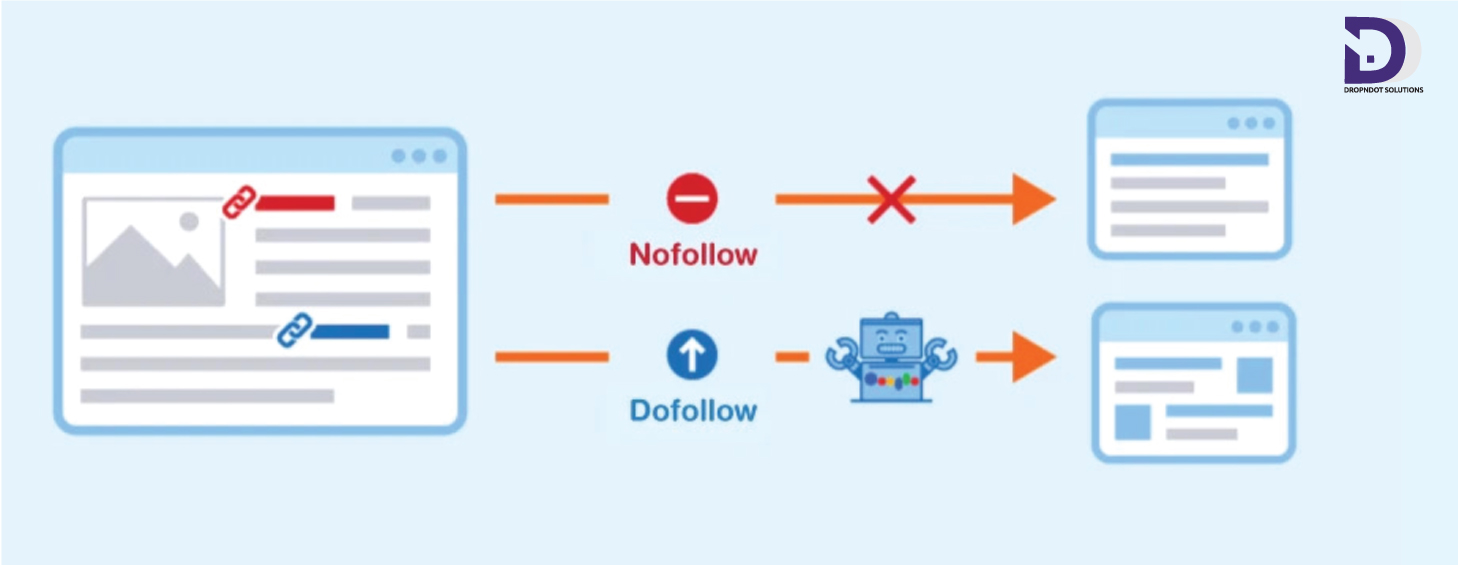
    1.1 Nofollow Links

    Nofollow links are HTML attributes used to instruct search engines not to pass any link juice or “authority” from one webpage to another. These links are typically used when you don’t want to endorse the linked content or when you want to avoid potential penalties for linking to low-quality or spammy websites. The syntax for a nofollow link is:

    <a href="https://example.com" rel="nofollow">Anchor Text</a>

    1.2 Dofollow Links

    Conversely, dofollow links are standard HTML links that allow search engines to follow them and pass link authority from one page to another. By default, all links are considered dofollow unless specifically marked as nofollow. The syntax for a dofollow link is:

    <a href="https://example.com">Anchor Text</a>

    2. Why Do Nofollow and Dofollow Links Matter?

    Understanding the importance of these link attributes is essential for various reasons:

    2.1 SEO Impact

    Dofollow links are considered votes of confidence by search engines. When reputable websites link to your content with dofollow links, it can significantly boost your website’s search engine ranking.

    Conversely, nofollow links do not pass link authority. While they may still generate traffic and offer value, they do not contribute directly to SEO.

    2.2 Spam Prevention

    Nofollow links are a tool to deter spammers and prevent link manipulation. They discourage low-quality websites from benefiting from legitimate websites’ link authority.

    2.3 User Experience

    Properly labeling nofollow links can enhance the user experience by signaling which links are trustworthy and which ones might lead to unverified or potentially harmful content.

    3. How to Manually Inspect Links for Nofollow and Dofollow Attributes

    You can manually inspect links on a website by right-clicking on a link and selecting “Inspect” or “Inspect Element” from your browser’s context menu. This opens the browser’s Developer Tools, which will display the HTML source code for the selected link.

    Here’s how to identify nofollow and dofollow links manually:

    1. Right-click on the link you want to inspect and choose “Inspect” or “Inspect Element.”
    2. In the Developer Tools, locate the link in the HTML source code.
    3. Look for the rel attribute within the <a> tag. If it contains “nofollow,” the link is nofollow; if it’s absent or contains other values, it’s dofollow.
    <a href="https://example.com" rel="nofollow">Anchor Text</a>

    This method is suitable for inspecting individual links, but it can be time-consuming for larger websites.

    4. Using Browser Extensions for Link Analysis

    Browser extensions can streamline the process of identifying nofollow and dofollow links. Here are some popular browser extensions that can help:

    4.1 NoFollow

    The NoFollow browser extension highlights nofollow links on a webpage. After installation, it adds a color border around nofollow links, making them easy to spot.

    4.2 Link Checker Extensions

    Some browser extensions, like Check My Links for Google Chrome, can check all links on a webpage and highlight any broken or nofollow links. This is especially useful for link auditing.

    5. Website Crawlers and Link Checker Tools

    Website crawlers and link checker tools are efficient ways to analyze all the links on a website quickly. These tools can provide a comprehensive overview of a site’s link profile, including information about nofollow and dofollow links.

    Some popular tools include:

    5.1 Screaming Frog SEO Spider

    Screaming Frog is a powerful website crawler that can identify nofollow and dofollow links, as well as provide other valuable SEO insights. It offers both free and paid versions.

    5.2 Ahrefs

    Ahrefs is an all-in-one SEO tool that can analyze a website’s link profile, including the type of links (nofollow or dofollow), their quality, and much more. Ahrefs requires a subscription but offers a free trial.

    6. Analyzing Link Attributes in HTML Source Code

    If you need to analyze links on a specific webpage or a few pages, you can inspect the HTML source code. Here’s how to do it:

    1. Visit the webpage you want to analyze.
    2. Right-click on the page and select “View Page Source” or “Inspect.”
    3. In the HTML source code, use the “Find” or “Search” feature (usually Ctrl + F or Command + F) to search for “nofollow.” If found, it indicates a nofollow link.
    4. To find dofollow links, look for <a> tags without the “rel” attribute containing “nofollow.”

    7. SEO Audit Tools for a Comprehensive Analysis

    If you’re conducting a thorough SEO audit of your website or someone else’s, you can use SEO audit tools that provide a complete overview of the site’s link profile. These tools not only identify nofollow and dofollow links but also assess other critical SEO factors.

    Some popular SEO audit tools include:

    7.1 SEMrush

    SEMrush offers an extensive suite of SEO tools, including a site audit feature that identifies nofollow and dofollow links. It also provides insights into keywords, rankings, and more.

    7.2 Moz Pro

    Moz Pro offers link analysis tools that help you identify the types of links on your website, including nofollow and dofollow links. It also provides domain authority and other important SEO metrics.

    8. Conclusion

    In conclusion, understanding the difference between nofollow and dofollow links is essential for effective SEO and website management. While nofollow links may not directly boost your search engine ranking, they play a crucial role in maintaining a healthy link profile and preventing spam. Dofollow links, on the other hand, are the ones you want to earn from reputable sources to enhance your SEO efforts.

    To find nofollow and dofollow links on a website, you can use a variety of methods, including manual inspection, browser extensions, website crawlers, and SEO audit tools. Each method has its advantages, so choose the one that best suits your needs and the scale.


  • How to Find and Fix Internal Redirects: A Comprehensive Guide

    How to Find and Fix Internal Redirects: A Comprehensive Guide

    Internal redirects are a common but often overlooked issue on websites that can negatively impact user experience and SEO. These redirects occur when a webpage’s URL is changed, but the old URL still points to the new one. This can lead to confusion for both users and search engines, potentially causing a drop in rankings and organic traffic.

    In this comprehensive guide, we will delve into the world of internal redirects, discussing what they are, why they are problematic, and most importantly, how to find and fix them to optimize your website’s speed and increase its visibility on search engines.

    Understanding Internal Redirects

    Before we delve into the process of finding and fixing internal redirects, it’s essential to understand what they are and how they work.

    What Are Internal Redirects?

    An internal redirect, also known as a 301 or 302 redirect, is a way to send website visitors and search engines from one URL to another within the same domain. These redirects are typically used for various reasons, including:

    1. URL Structure Changes: When a website undergoes a redesign or restructuring, old URLs may be redirected to new ones to maintain continuity and avoid broken links.
    1. Content Updates: If a page’s content is updated or moved to a different location on the same website, a redirect ensures that users and search engines can find the new location.
    1. Canonicalization: Internal redirects can help resolve duplicate content issues by redirecting multiple URLs to a single canonical URL.

    Types of Internal Redirects

    There are two primary types of internal redirects:

    Types of Internal Redirects
    Types of Internal Redirects
    1. 301 Redirect: A 301 redirect is a permanent redirect, indicating that the old URL has been permanently replaced by the new one. Search engines like Google consider the new URL as the canonical version and transfer the SEO value of the old URL to the new one.
    1. 302 Redirect: A 302 redirect is a temporary redirect, indicating that the change is temporary, and the old URL should still be considered valid. It does not transfer the SEO value to the new URL.

    Why Internal Redirects Are Problematic

    While internal redirects serve a purpose, they can become problematic for several reasons:

    1. User Experience: When users encounter redirects, it can lead to a slower and less smooth browsing experience. Multiple redirects can confuse visitors, making them abandon the site.
    1. SEO Impact: Internal redirects can dilute the SEO value of a page. If multiple redirects point to a single URL, search engines may not understand the correct canonical version, affecting rankings.
    1. Crawl Allocation: Search engines allocate a finite amount of resources for website crawling. If a site has too many internal redirects, it can waste the crawl budget, preventing the indexing of important pages.
    1. Indexing Issues: Search engines might not index the redirected URLs correctly, leading to potential visibility issues in search results.

    How to Find Internal Redirects

    Now that we understand the significance of internal redirects, let’s explore how to identify them on your website.

    1. Crawl Your Website

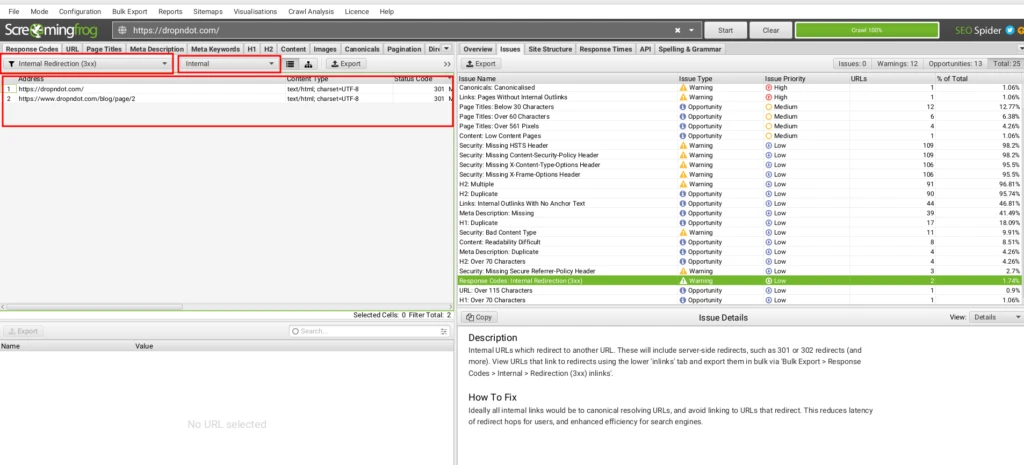
    One of the most effective ways to find internal redirects is to crawl your website using a web crawling tool like Screaming Frog or Ahrefs. These tools will provide you with a comprehensive list of URLs on your website, along with their HTTP status codes.

    Crawl Your Website
    Crawl Your Website

    Look for URLs with status codes like 301 (permanent redirect) and 302 (temporary redirect). These are the pages that have internal redirects.

    2. Check Google Search Console

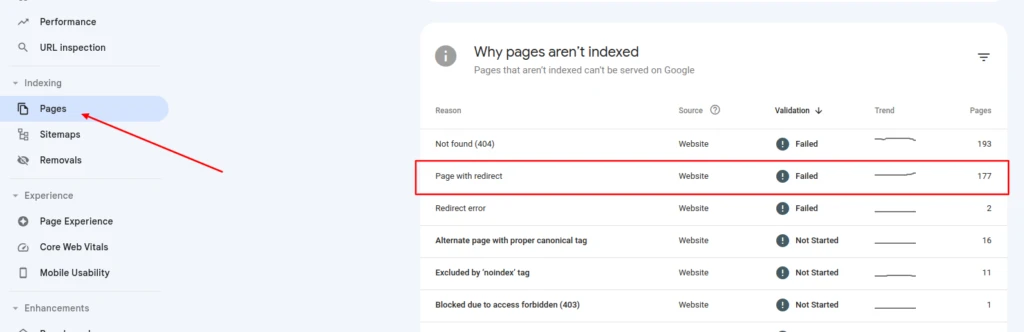
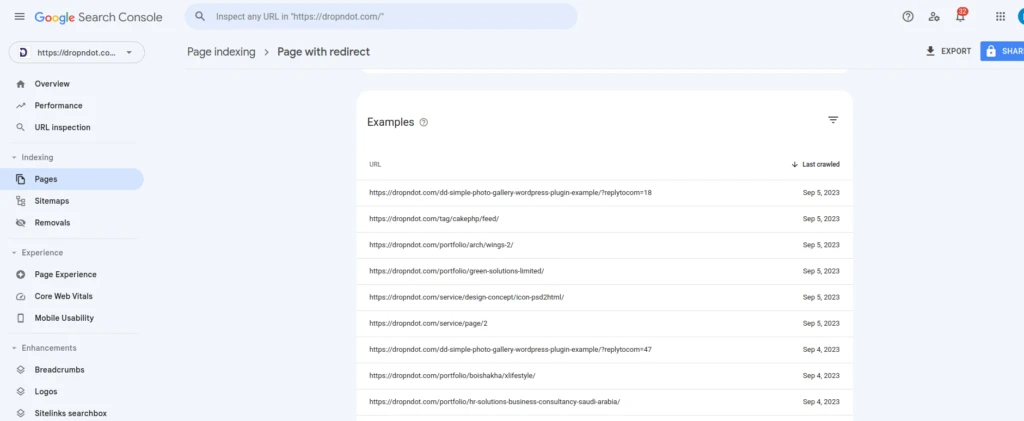
    Google Search Console is a real treasure for website owners. It can provide insights into how Googlebot crawls your site. Check the ‘Coverage’ report in Google Search Console for any issues related to redirects.

    Check Google Search Console1
    Check Google Search Console1
    Check Google Search Console2
    Check Google Search Console2

    3. Manually Inspect Links

    You can also manually inspect links on your website to identify internal redirects. Open your website in a browser and use browser developer tools to view network requests and see if any URLs result in redirects.

    4. Analyze Server Logs

    If you have access to your server logs, you can analyze them to find internal redirects. Look for entries that indicate URLs being redirected with status codes like 301 or 302.

    5. Use SEO Auditing Tools

    SEO auditing tools like Moz, SEMrush, and Ahrefs offer features to identify internal redirects as part of their site audit capabilities. By automating the process, these tools help you save valuable time.

    How to Fix Internal Redirects

    Once you’ve identified internal redirects on your website, it’s crucial to fix them to improve user experience and maintain SEO integrity. Here’s a step-by-step guide on how to fix internal redirects:

    1. Update Links and References

    If you find internal redirects caused by outdated links or references within your content, update them to point directly to the correct URLs. This will eliminate the need for redirects and improve user experience.

    2. Implement 301 Redirects

    For URLs that have permanently moved or changed, implement 301 redirects. This tells search engines that the old URL has been permanently replaced by the new one. You can usually set up 301 redirects in your website’s .htaccess file or through your content management system (CMS).

    3. Remove Unnecessary Redirects

    Review your website’s redirects and eliminate any that are unnecessary. Redirect chains, where one URL redirects to another and then to another, should be avoided as they can slow down page loading times and confuse search engines.

    4. Monitor for Broken Links

    Regularly monitor your website for broken links using tools like Broken Link Check or Screaming Frog. Fix broken links promptly to prevent the need for redirects in the first place.

    5. Update Sitemap and Robots.txt

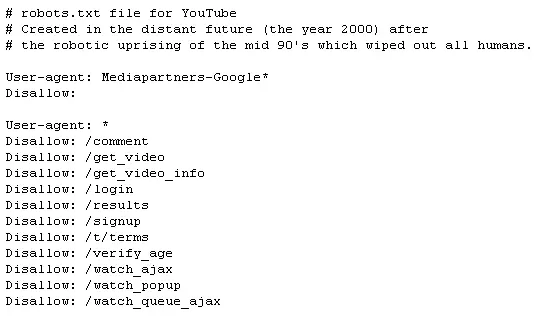
    Ensure that your website’s sitemap and robots.txt files are up-to-date and do not include URLs that have been redirected. This helps search engines crawl and index your site correctly.

    Update Sitemap and Robots.txt
    Update Sitemap and Robots.txt

    6. Test Redirects

    After implementing or removing redirects, thoroughly test them to ensure they work as intended. Use online tools like Redirect Checker to confirm that the old URLs are correctly redirecting to the new ones.

    7. Monitor Performance

    Keep an eye on your website’s performance and SEO rankings after making changes to redirects. This will help you assess the impact of your fixes and make adjustments if necessary.

    Preventing Internal Redirect Issues

    While it’s essential to know how to find and fix internal redirects, preventing them in the first place is even better. Consider these precautionary steps:

    1. Plan Website Changes Carefully

    Before making significant changes to your website’s structure or content, plan carefully. Consider the impact on existing URLs and how you can minimize the need for redirects.

    2. Use Canonical Tags

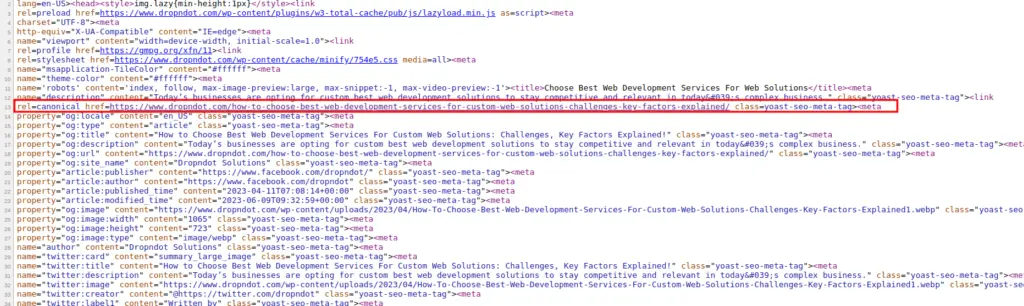
    Implement canonical tags on pages with similar or duplicate content to guide search engines to the preferred URL. This can help prevent indexing issues caused by internal redirects.

    Use Canonical Tags
    Use Canonical Tags

    3. Keep URLs Consistent

    Maintain consistency in your URL structure. Avoid frequently changing URLs or restructuring your site, as this can lead to a higher likelihood of internal redirects.

    4. Regularly Audit Your Website

    Perform regular website audits to catch internal redirect issues early. Use the tools mentioned earlier to identify and fix problems before they become more significant.

    Internal redirection can have a significant impact on your website’s user experience and SEO performance. Understanding what they are, how to find them, and how to fix them is crucial for maintaining a healthy and well-optimized website.

    By regularly auditing your site, monitoring for issues, and taking proactive

    Supercharge Your SEO with Our Services!

    Struggling with internal redirects? We will cover:

    • Smooth User Experience
    • Improved SEO Rankings
    • More Organic Traffic
    • Efficient Crawl Management

    Say goodbye to redirect issues. Contact us today for a comprehensive SEO audit and optimization.

    Contact Us to Get Started with us!